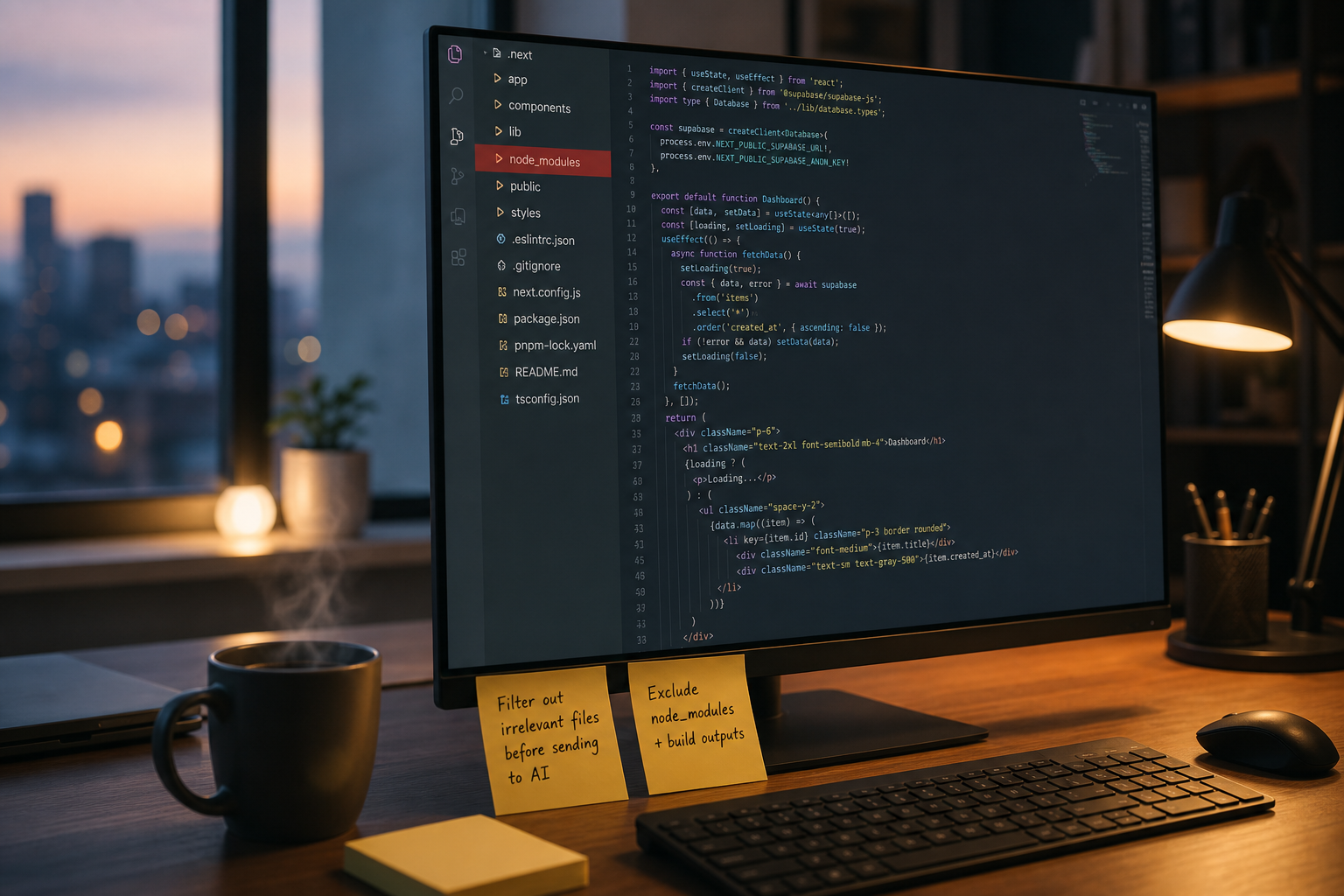
Your AI coding assistant reads every file it can reach. That includes the node_modules folder, ancient log dumps, and test fixtures that have nothing to do with your current task. Each of these files consumes tokens—and tokens cost money.
Lineman helps engineering teams cut token spend by 40%+ through automatic tool-output compression. But before you compress, you should first stop the irrelevant data from entering context at all. This guide walks you through the mechanics of irrelevant file filtering so you can configure your AI coding tools to prioritize signal over noise.
The seven steps below show you exactly how to configure exclusions, narrow context scope, and reduce token waste without hurting output quality.
Quick Guide: How to Exclude Irrelevant Files From AI Coding Tools in 7 Steps
- Identify your largest token offenders — Run a context audit to find which files consume the most tokens in your sessions.
- Create an exclusion configuration file — Add a
.aiexcludeor equivalent config to your project root. - Exclude dependency directories — Block
node_modules,vendor, and similar folders from context scans. - Filter out build artifacts and logs — Add patterns for
dist/,build/, and log directories to your exclusion rules. - Limit test fixture exposure — Exclude large test data files and mock fixtures that rarely inform reasoning.
- Set file size and type thresholds — Configure maximum file sizes and block binary or minified file types.
- Compress remaining tool output — Use Lineman to distill file reads and logs that still enter context into compact summaries.
How to Configure AI Coding Assistants to Exclude Irrelevant Files
1. Identify your largest token offenders
Before you exclude anything, you need to know where your tokens are going. Most AI coding tools include a context inspection command—Claude Code uses /context, for example—that breaks down what's filling your active window.
Run this diagnostic at the start of a typical session. Look for patterns: file reads from directories you never intended to query, logs from test runs you already reviewed, or search results that pulled in half the codebase. This gives you the map for targeted filtering.
On Lineman's benchmarks, tool output accounts for over half a typical token bill. The files you identify here are your highest-value exclusion targets.
2. Create an exclusion configuration file
Most AI coding assistants support project-level exclusion configs. JetBrains AI Assistant uses .aiexclude files. GitHub Copilot reads content exclusion settings from your repository or organization. Cursor allows .cursorignore patterns.
Create this file at your project root. The syntax usually mirrors .gitignore—glob patterns that specify which paths to skip during context collection.
If your IDE or tool doesn't support native exclusions, check whether it respects .gitignore by default. Many assistants do, which means your existing ignore patterns already provide partial protection.
3. Exclude dependency directories
Dependency folders like node_modules, vendor, .venv, and packages are the biggest offenders in most codebases. These directories contain thousands of files your assistant will never need for reasoning about your code.
Add these patterns to your exclusion config:
node_modules/vendor/.venv/packages/bower_components/
This single step can eliminate 60–80% of the files that would otherwise enter your context window. The mechanic is straightforward: because these files never enter context, they're never billed—not once and not on any later turn.
4. Filter out build artifacts and logs
Build outputs, compiled assets, and log directories add bulk without adding signal. Your assistant doesn't need minified JavaScript, compiled CSS, or yesterday's CI logs to help you debug today's feature.
Add exclusion patterns for common build and output directories:
dist/build/out/.next/coverage/logs/*.log
This directly counters context compounding. Every token you prevent from entering context is a token you won't re-pay on subsequent turns when the model re-sends the accumulated conversation.
5. Limit test fixture exposure
Test directories often contain massive fixture files—JSON snapshots, mock data, and generated outputs that can balloon context size without contributing to reasoning.
Be selective here. You likely want your assistant to see test code itself, but not the 500KB JSON fixtures those tests consume. Use patterns that target data subdirectories:
__fixtures__/__snapshots__/test/data/tests/fixtures/*.snap
The goal is preserving test logic while excluding the bulk. On Lineman's data, test fixtures routinely account for 15–25% of context in projects with heavy test coverage.
6. Set file size and type thresholds
Some files are too large or too opaque to give useful context regardless of their location. Minified bundles, binary assets, and auto-generated lock files add tokens without adding insight.
Configure your exclusion rules to filter by size and type:
*.min.js*.min.csspackage-lock.jsonyarn.lock*.wasm*.png,*.jpg,*.gif
Some tools also support maximum file size settings. GitHub Copilot's content exclusion settings let you define byte limits, preventing oversized files from entering context automatically.
7. Compress remaining tool output
Exclusion rules handle the obvious cases—files that should never enter context. But some tool output is necessary yet bulky: file reads you actually requested, search results that match your query, or test logs you need to triage.
Lineman intercepts these data-heavy tool calls and hands your model a distilled version instead of the full dump. This maintains the information you need for reasoning while cutting token costs by 40%+ on Lineman's benchmarks—with no measurable quality degradation.
The mechanic works like this: instead of loading a full file into context, Lineman extracts the task-relevant portions and compresses them. Because the bulk never enters context, it's never billed.
What files consume the most tokens in AI coding sessions?
Tool output drives the majority of token spend. File reads, build logs, test outputs, and search results consume more tokens than the model's own reasoning in most sessions. On Lineman's data, tool output accounts for over half a typical bill.
The specific culprits depend on your codebase, but patterns emerge consistently:
- Dependency directories —
node_modulesalone can contain tens of thousands of files - Lock files —
package-lock.jsonfiles often exceed 100KB - Test fixtures — JSON snapshots and mock data files balloon quickly
- Build outputs — Compiled and minified assets add bulk without signal
Run your context diagnostic at the start of each session to identify which files are filling your window. The files that appear most frequently are your highest-priority exclusion targets.
Why does context compounding make file exclusion critical?
Context compounding is the mechanic that makes exclusion so valuable. Models are stateless, so every turn re-sends the whole conversation as input. This means every token in your context window is re-billed on each turn.
A bulky file read on turn one doesn't just cost you once—it costs you again on turn two, turn three, and every subsequent turn until you clear context. This is why tool output is the worst offender: a 10KB file read that seems reasonable on turn one becomes a significant cost multiplier across a 20-turn session.
File exclusion addresses this at the source. By preventing bulky files from entering context in the first place, you avoid both the initial cost and the compounding cost on every future turn. This directly reduces your total session spend without requiring you to change how you prompt or interact with your assistant.
How Lineman Helps You Reduce Token Waste From Irrelevant Files
Lineman gives you automatic compression for the tool output that still needs to enter context. Exclusion rules stop the obvious cases—dependency folders, build artifacts, and fixtures. But your assistant still needs to read files, run searches, and process logs to do its job.
Lineman intercepts these data-heavy tool calls before they reach your model. Instead of loading the full output into context, Lineman distills it to the task-relevant portions. On Lineman's benchmarks, this cuts token spend by 40%+ while maintaining 98.3% output quality retention.
The installation takes minutes with no workflow changes. You keep prompting exactly as you do now while the largest cost—tool output—is compressed automatically. Lineman also gives you real-time token savings statistics so you can see exactly how much context you're saving on each task.
Get started with Lineman to cut your AI coding costs without changing how you work.
FAQs About How to Exclude Irrelevant Files From AI Coding Tools
What is an .aiexclude file?
An .aiexclude file is a configuration file that tells your AI coding assistant which files and directories to skip during context collection. It works like a .gitignore file, using glob patterns to specify exclusion rules at the project level.
Does GitHub Copilot support file exclusions?
Yes. GitHub Copilot supports content exclusion settings at the repository and organization level. You can configure exclusion rules through your GitHub settings to prevent specific files and directories from being processed by Copilot.
How much can file exclusion reduce my token costs?
Excluding dependency directories alone can cut 60–80% of files from context. Lineman's data shows that tool output accounts for over half a typical token bill. Combined with automatic compression from Lineman, teams regularly see 40%+ token cost reduction.
Will excluding files hurt my AI assistant's output quality?
Excluding irrelevant files improves output quality by reducing noise. Your assistant reasons better when it focuses on relevant code rather than sifting through thousands of dependency files. Lineman achieves 98.3% output quality retention while cutting tokens significantly.
Should I exclude my test directories entirely?
No. Exclude test fixtures and snapshot data, but keep test code visible. Your assistant benefits from seeing your test logic and patterns. Target the bulky data subdirectories like __fixtures__/ and __snapshots__/ rather than the entire test folder.
How do I know which files to exclude?
Run your assistant's context diagnostic command—/context in Claude Code—to see what's filling your window. Files that appear frequently and add bulk without contributing to reasoning are your priority targets. Lineman's real-time statistics also show you which tool outputs consume the most tokens.
Can I use .gitignore patterns for AI exclusions?
Many AI coding assistants respect .gitignore by default, which means your existing patterns already provide partial protection. Check your specific tool's documentation—some require separate exclusion files while others inherit from .gitignore automatically.